Reset an Invoice number or Delete an AR Invoice/Credit

Modified on Wed, 18 Feb at 11:01 PM

If a charge is raised incorrectly and an invoice number assigned, follow the below steps to delete or edit the charge. 


Step-by-step guide
 

Reset Invoice Number

Note: Only do this if the invoice is no longer in Temporary Forms because it has already been approved by the TA (Trust Accountant).


A) Reset the Invoice Number (Reset Inv No.)

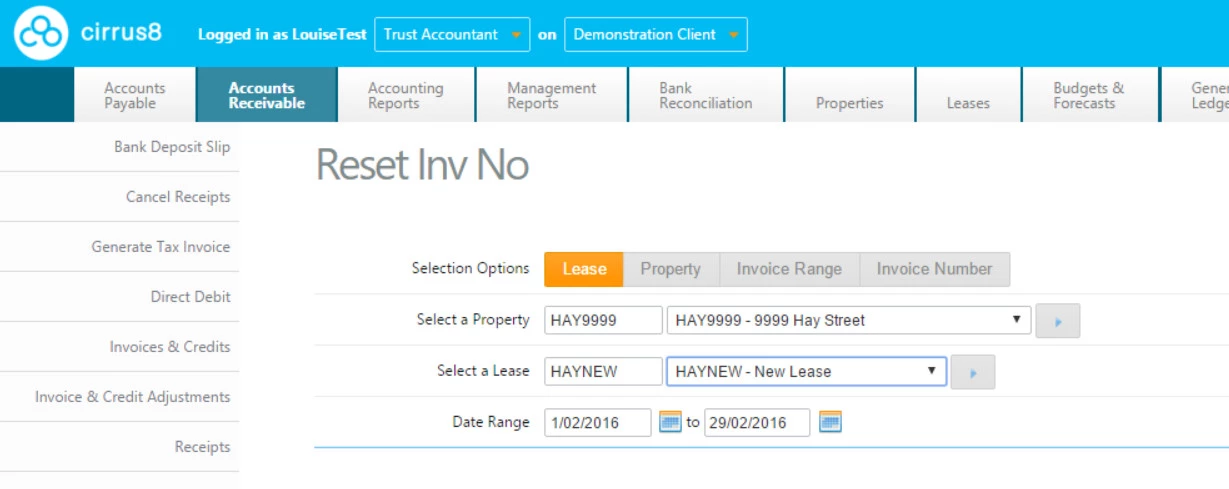
  1. Go to Reset Inv No.

  2. Select a Property and Lease.

  3. Enter the Invoice Date Range.

  4. Click Search.

  5. Find the invoice you want to remove and click View.

  6. Tick the Reset checkbox next to the line item(s) you want deleted.

  7. Click Reset.

Result: The PDF invoice is automatically deleted.


B) Delete or Edit the Transaction (after reset)

  1. Go to Invoice & Credit Adjustment.

  2. Select a Property and Lease.

  3. The transaction should now appear under:
    “Period Open (Tax Invoice Not Generate & Unpaid)”

  4. Click View.

  5. Either:

    • Delete the transaction, or

    • Edit the transaction.

If you edit it:
6. Save your changes.
7. Go to Generate Tax Invoice to assign a new invoice number to the updated transaction.


One-off charges submitted by Property Managers for approval

1) Charges (no invoice number yet)

  • Trust Accountants reject the one-off charge via:
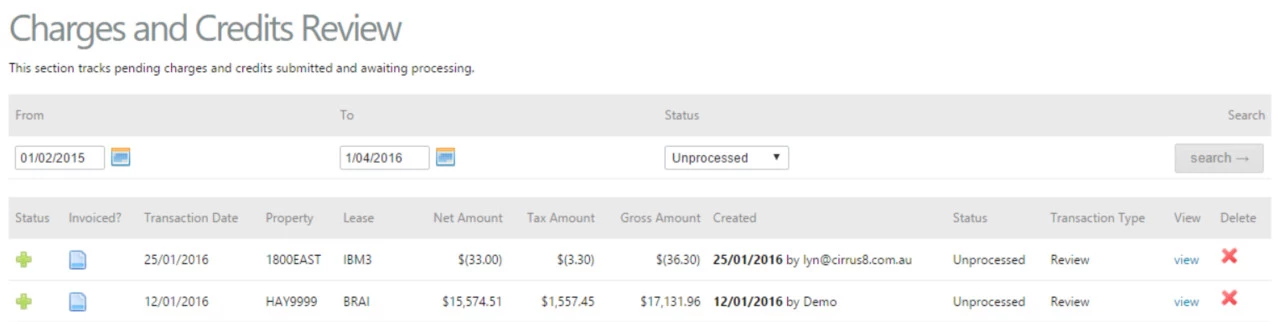
    Dashboard → Charges and Credits → View

2) Interim Invoices (already has an invoice number)

  1. Trust Accountants reject the one-off charge via:
    Dashboard → Charges and Credits → View

  2. Then follow the steps above to:

    • Reset the invoice number, and

    • Delete/Edit the transaction (and regenerate a new tax invoice number if needed).


Was this article helpful?

That’s Great!

Thank you for your feedback

Sorry! We couldn't be helpful

Thank you for your feedback

Let us know how can we improve this article!

Select at least one of the reasons
CAPTCHA verification is required.

Feedback sent

We appreciate your effort and will try to fix the article